OFFICIAL APP GUIDE
Yahamiao Cat and Task Widgets: iPhone and Android Setup
Yahamiao offers Today’s Tasks and Cat Companion home screen widgets. One shows your tasks and their status; the other shows your selected cat. Take a quick look without opening the app.
Checked October 12, 2026 · Current public iOS version: 1.0.4
Guide updated:
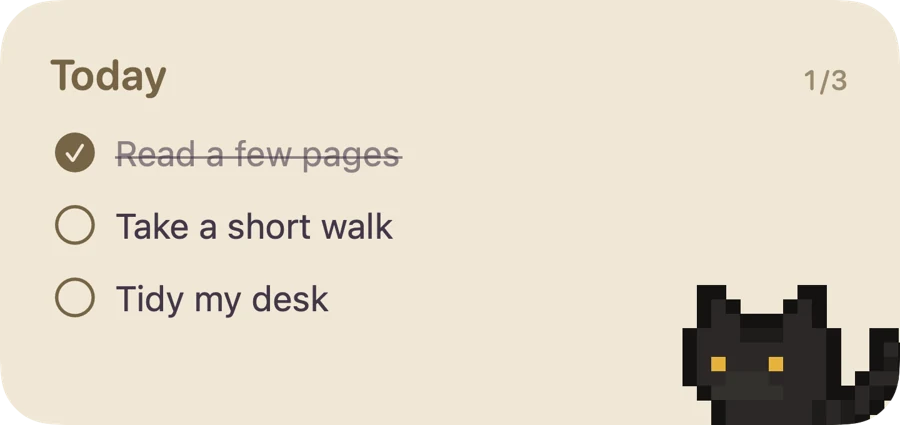

Choose a task widget or a cat companion
Choose Today’s tasks to see your plan, or Cat companion to see your selected cat. The images above show native iOS widget designs; Android layouts and setup menus depend on your device.
| Widget | What it shows | When to use it |
|---|---|---|
| Today’s tasks | Today’s tasks and completion status | Check your plan when you return to the home screen |
| Cat companion | Your currently selected cat | Leave a little room for your companion on the home screen |
Add a widget on iPhone or iPad
Install Yahamiao and open it once. Write a sample task or choose your companion, then use your system’s home screen controls.
- Touch and hold an empty area of your home screen to enter edit mode.
- Tap Edit / Add Widget, or the add control shown by your system. Search for Yahamiao.
- Choose Today’s Tasks or Cat Companion, select an available size, and add it to the home screen.
- Update a task in the app, then return to the home screen. Button names can vary with your system version.
Add a widget on Android
These steps are for the Android version on Tencent App Store. Launcher controls vary by phone; use the Widgets option shown on your device.
- Install and open Yahamiao. Write down today’s things.
- Touch and hold an empty part of the home screen and open Widgets.
- Find Yahamiao, choose Today’s Tasks or Cat Companion, and place it where there is enough space.
- If it is missing, make sure the app is installed and has been opened. Your launcher may need to refresh.
Why hasn’t the widget changed yet?
The system schedules widget refreshes, so the home screen may update after the app. Check that your record is saved in the app, then look again. Widgets do not animate continuously. Tap behavior and refresh timing depend on your system and installed app version.
What if Yahamiao is missing from the widget list?
If it is still missing, include your phone model, system version, app version, and a screenshot of the widget picker when contacting support.
- Check that you installed the mobile app. A WeChat mini program does not appear in your phone’s home screen widget list.
- Open the app once and check that today’s list is visible, then return to the system widget picker.
- Search for the app name shown on your device, including Yahamiao when using English.
- On Android, use a launcher that supports widgets and leave enough space. The launcher determines menu names and available sizes.
Keep your local records before troubleshooting
First check that your task was saved in the app, then return home and allow the system to refresh the widget. Widgets do not play continuous frame-by-frame animation or guarantee an immediate update. Before uninstalling or clearing app data, export a JSON backup and check that the file was saved. The developer cannot recover deleted local tasks remotely.
SOURCES AND CHECKS
Based on the public store descriptions, app help, and official system tutorials. Images show the app in this language or native widget styles. Sample tasks are illustrative, not real personal records.
Need help? Visit support (Chinese) ↗